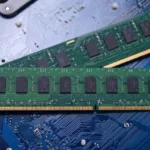

Upgrading computer memory can help improve system responsiveness, support multitasking, and extend the useful life of existing hardware. However, choosing the right DDR4 Memory Modules requires more than checking the available capacity. IT teams and individual users need to consider motherboard specifications, processor support, memory speed, physical dimensions, and operating requirements. A compatible upgrade can help reduce installation issues and unnecessary expenses. With guidance from suppliers such as RAM Exchange, buyers can make informed decisions when selecting memory for desktops, workstations, and business computers.
Check Motherboard Compatibility First
The motherboard determines which memory types a computer can accept. Even if two memory modules look similar, they may use different technologies and cannot necessarily work in the same system.
Before purchasing replacement memory, identify the motherboard model and review its specifications. The manufacturer usually provides details about supported memory generations, maximum capacity, slot configuration, and approved speeds.
Check these details before ordering:
- Memory generation: Confirm that the motherboard supports DDR4 rather than DDR3 or DDR5.
- Maximum capacity: Find the total memory limit and the maximum supported capacity per slot.
- Slot availability: Check how many slots are installed and how many are currently occupied.
- Module type: Verify whether the system requires standard desktop DIMMs or laptop SO-DIMMs.
- Supported configurations: Review any restrictions on combining module capacities or using particular slot combinations.
These checks help prevent buying memory that cannot physically fit or function in the intended computer.
Match Memory Specifications to the Processor
The processor also affects memory compatibility. Different CPU models support specific memory technologies, speeds, and capacities. A motherboard may list several supported speeds, but the processor can limit the speed available in practice. For example, an older workstation may support DDR4 memory but operate at a lower speed than a newer system using the same memory generation. Installing a faster module does not automatically make the computer run at that advertised speed.
Before upgrading, review the processor specifications and motherboard documentation together. This is especially useful when maintaining office computers, servers, or professional workstations that need consistent performance. RAM Exchange can be considered as part of the sourcing process when comparing memory options for existing IT hardware. Confirming the exact specifications before ordering helps narrow the selection to modules suited to the intended system.
Choose the Right Capacity for the Workload
The amount of memory a computer needs depends on the software it runs and the number of tasks it handles at once. Adding capacity can reduce slowdowns caused by insufficient memory, although it will not resolve every performance problem.
Consider the computer’s primary use before deciding how much RAM to install.
- Everyday office computers: Web browsing, email, spreadsheets, and standard office applications may work well with a modest memory configuration.
- Business workstations: Large spreadsheets, design tools, editing software, and multiple applications may benefit from additional capacity.
- Development systems: Virtual machines, testing environments, and development tools can require substantial memory.
- IT and technical systems: Workloads involving databases, analytics, or several virtual environments may need carefully planned memory configurations.
Check current memory usage through the operating system’s performance tools before making a purchase. This can help determine whether additional RAM is likely to address the problem.
Pay Attention to Memory Speed and Timings
Memory speed is another specification worth checking during an upgrade. DDR4 modules are available at different data rates, and not every system supports every speed. The computer generally operates according to the supported configuration established by its motherboard, processor, and memory settings. A module advertised at a higher speed may run at a lower supported rate.
Memory timings also influence how quickly certain operations can be completed. However, capacity and system compatibility should generally take priority over small differences in timings for routine business upgrades.
For reliable results, compare the following specifications:
- Supported DDR4 data rates.
- Rated module speed and latency.
- Voltage requirements.
- Available BIOS or firmware memory settings.
- Compatibility with the existing memory configuration.
Avoid assuming that the fastest available module will deliver the best results. A supported configuration that operates reliably is often a better choice for business computers.
Decide Whether to Mix Existing and New RAM
Adding a new module alongside existing memory can be a practical way to increase capacity without replacing every installed component. However, mixing modules requires some care. Different capacities, speeds, timings, and brands may work together, but compatibility is not guaranteed. In many cases, the system adjusts to a common supported speed or configuration. Some combinations may cause instability or prevent the computer from starting.
Before combining modules, check whether the motherboard supports the proposed arrangement. Using matched modules with similar specifications can simplify configuration and reduce the chance of unexpected problems. Dual-channel memory support is another consideration. Many desktop platforms perform better when compatible modules are installed in the recommended paired slots. Consult the motherboard manual to identify the correct arrangement. For business environments where downtime is costly, replacing memory with a tested, matched set may be preferable to combining unrelated modules.
Consider ECC and Registered Memory Requirements
Some IT systems require memory designed for particular workloads. Error-correcting code (ECC) memory can detect and correct certain types of memory errors, making it useful in supported servers and workstations. Registered memory, also called buffered memory, is commonly used in server platforms that support it. Standard unbuffered memory is more typical in desktops and many consumer workstations. These types are not interchangeable in every system. A computer must support the relevant memory design at the motherboard and processor level.
Before buying, determine whether the system requires:
- ECC or non-ECC memory.
- Registered or unbuffered modules.
- A specific rank or chip configuration.
- Manufacturer-approved memory specifications.
The correct choice depends on the platform. Never assume that ECC or registered memory will work simply because the module uses DDR4 technology.
Buy from a Reliable Memory Supplier
Selecting a suitable supplier is part of a successful hardware upgrade. Accurate product specifications, clear module descriptions, and dependable stock information help IT teams reduce purchasing errors.When comparing computer memory products, verify the complete part number instead of relying on a general product name. Two modules with similar descriptions may have different capacities, ranks, speeds, or electrical requirements.
RAM Exchange is a brand buyers can consider when sourcing memory for hardware upgrades. Before placing an order, confirm that the selected module matches the computer’s requirements and that the product description provides enough detail to verify compatibility. Keep records of installed part numbers, system models, and purchased replacements. This information can simplify future maintenance, particularly for organisations managing multiple computers across different departments.
Test the System After Installation
Correct installation is only one part of the upgrade process. Testing the computer afterward helps identify compatibility problems before the system returns to regular use. Shut down the computer, disconnect the power where appropriate, and follow the manufacturer’s instructions for accessing memory slots. Use suitable anti-static precautions and ensure each module is seated correctly.
After installation, complete these checks:
- Start the computer and confirm that it boots normally.
- Check the BIOS or UEFI settings to verify the detected memory capacity.
- Confirm the installed memory amount in the operating system.
- Run a reputable memory diagnostic or bootable memory test.
- Monitor the computer for crashes, unexpected restarts, or other signs of instability.
If the system fails to start, power it down and recheck the module seating and slot arrangement. Consult the motherboard manual for troubleshooting guidance rather than repeatedly changing settings without a clear reason. Testing is particularly valuable when upgrading several machines because it helps identify problems before they affect daily operations.
Plan Your Next Hardware Upgrade Carefully
A successful memory upgrade starts with accurate specifications, realistic capacity requirements, and a clear understanding of the computer’s limitations. Checking the motherboard, processor, module type, speed, and memory configuration before purchasing can prevent avoidable compatibility issues. RAM Exchange can be part of the sourcing process for businesses and individuals comparing DDR4 Memory Modules for existing hardware. Taking time to verify specifications and test the finished installation helps keep IT upgrades practical, reliable, and easier to maintain. Contact us today to discuss your memory requirements and find suitable options for your IT hardware upgrade. Confirm system specifications before purchasing to help ensure the selected memory meets your computer’s compatibility needs.